How to use subtitles in Seedr with OpenSubtitles

<!-- Note: slug contains a space; will be migrated to kebab-case (using-subtitles) server-side. -->
Use subtitles in Seedr — OpenSubtitles, SRT upload, and sync
Subtitles in Seedr work two ways: search and load from OpenSubtitles directly inside the player, or upload an SRT file you already have. Both work in the browser on any device. This guide walks through every control — the search button, the CC menu, language switching, sync, and the casting rules — so you do not have to hunt for them.
What subtitles do in Seedr's player
The cloud player has a subtitle layer built into the video view. That means:
- No external player to install (no VLC, no Kodi).
- No renaming SRT files to match the video exactly before they load.
- Access from phone, laptop, or TV — subtitles travel with your cloud, not your device.
- The OpenSubtitles database is reachable from inside the player. No copying links, no second tab.
If you just got here and have not uploaded a video yet, see the Beginner's tutorial first, then come back.
Where the subtitle buttons live
Two buttons control subtitles. They look similar and do slightly different things:
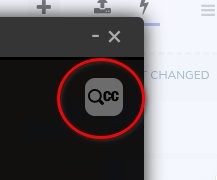
- Top right of the video viewer — grey box with a magnifying glass and "CC". This opens the OpenSubtitles search. Use it to find and add subtitles that are not already loaded.
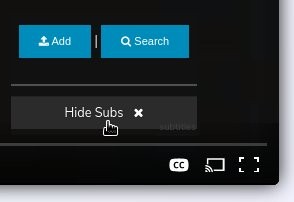
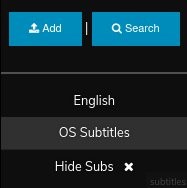
- Bottom right of the video viewer — button labelled "CC". This opens the subtitle menu. Use it to toggle subtitles on or off, switch between loaded subtitle tracks, upload an SRT file, or search again.
The grey bar in the CC menu indicates which track is currently active.
Add subtitles from OpenSubtitles
The fastest path — works with no files in hand.
- Open your video in the cloud player.
- Click the CC-with-magnifier button in the top right.
- Seedr pre-fills the search with the video filename.
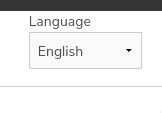
- Pick a language in the Language dropdown (top left of the search panel). Supported languages vary by video — if yours is missing, try a neighbouring one or upload your own SRT (next section).
- A list of matching subtitle sets appears.
- Click USE next to the one you want. It loads into the player.
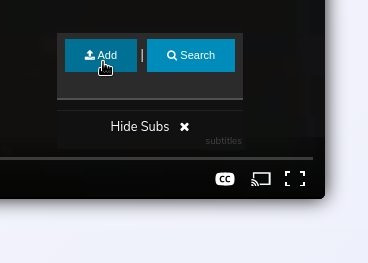
You can reach the same search from the bottom-right CC menu by clicking Search.
Upload your own SRT file
Use this when you already have the subtitle file — for example, one that shipped with the video, or one you downloaded from somewhere other than OpenSubtitles.
- Click the CC button in the bottom right of the player.
- Click Add in the top left of the menu.
- Select your SRT file and choose its language from the dropdown.
- Click Add Subtitles.
The file uploads to your Seedr cloud and becomes available immediately in the subtitle menu. Next time you open the same video, the subtitle is still there.
Change subtitle language
Either via OpenSubtitles search or from files you already added:
- New search: open either CC button, change the Language dropdown, click USE on your preferred result.
- Existing subtitles: open the bottom-right CC menu and click the language you want. The grey bar moves to the active track.
Not every language is available for every video. If nothing comes back, upload an SRT manually.
Turn subtitles on, off, or back to default
- Default English track (if present): open the bottom-right CC menu and click English.
- Disable subtitles: open the bottom-right CC menu and click Hide Subs.
- Re-enable: open the CC menu and click any loaded track.
Sync subtitles with the video
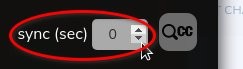
Sometimes dialogue runs ahead of or behind the subtitle. Seedr has a sync tool right next to the CC button.
- In the top right of the player, to the left of the CC-with-magnifier button, find the small sync control (hover near it to see it clearly).
- Use the up and down arrows to nudge timing, or type a value directly.
- Negative values make subtitles appear sooner.
- Positive values make subtitles appear later.
Small offsets — a fifth of a second — are common with OpenSubtitles matches. Larger offsets usually mean the subtitle was made for a different video release.
Tips and gotchas
- Encoding: SRT files with non-Latin characters should be saved in UTF-8. Windows ANSI-encoded files often show garbled accents.
- Release matching: if the video filename is descriptive (title, year, resolution, source), OpenSubtitles search is much more accurate.
- Embedded vs external: MKV files may already contain subtitle tracks. Seedr exposes those in the CC menu alongside uploaded SRTs.
- Casting: when sending the video to a Chromecast or AirPlay target, pick your subtitle track in the player before hitting cast. Roku uses the separate Seedr Roku plugin — set the subtitle there inside the plugin, not via the web player.
- HD video: upgrade your account if you want higher-resolution playback for the same video.
- More storage: invite friends to get more space — see the How to: Invite Friends guide.
Wrap up
Two buttons, one database, one upload path. You can enable subtitles on any video in your Seedr cloud without leaving the player. See OpenSubtitles for more about the source database.

Was this article helpful?
Related Articles

How to open HEIC photos online on Windows, Android, or any browser
Open iPhone HEIC photos from any device in Seedr’s cloud viewer — no conversion, no codecs, no extra apps — and keep them organized alongside your other files.

Connect Seedr to Infuse (iOS, tvOS, macOS)
Learn how to easily connect your Seedr account to the Infuse app using WebDAV or FTP. View 4K media directly to your Apple TV or iOS device without saving.

Three ways to add links and files in Seedr V2
Learn how to use Seedr V2’s Link button to add media links, scan webpages, upload files from your device, and share to Seedr via PWA or browser extensions.